Shapes
Overview
This page provides a general introduction for drawing 3D shapes in the game world.
For further information on available methods and properties, see the ShapeList page.
The ShapeList allows plugins to draw simple 3D shapes within the game world.
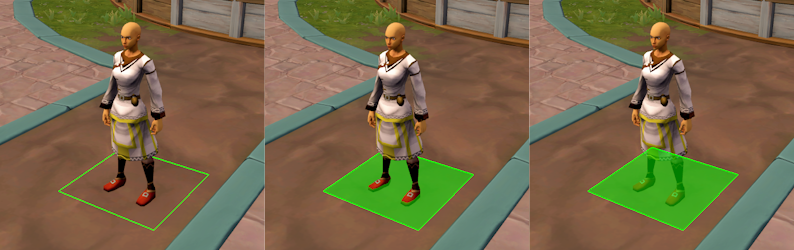
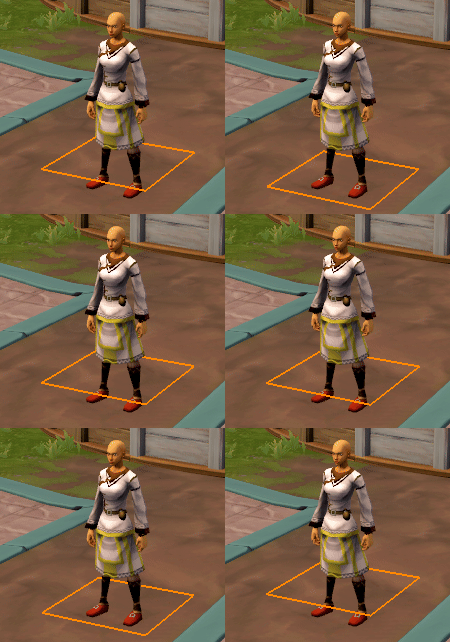
The examples above show several simple tile shapes:
- A shape made out of four lines
- The first shape with an additional semi-transparent fill made of two triangles
- The second shape again, but with
ignoreDepth = true
Shapes
Each 3D shape consists of arrays of four kinds of data:
| Data | Type | Optional | Description |
|---|---|---|---|
| Position | Vector3 | A position in 3D space.Can be in world-space, or in local-space to be transformed later by translation, scale and rotation values.Transformations apply equally to all positions in the array. | |
| A numerical representation of a colour with alpha, i.e. 0xFF88007F (orange with 50% alpha). The number of colours in this array must match the number of positions, or be empty. | |||
| Triplets of indices into the positions array.Indices are 0-indexed. | |||
| Pairs of indices into the positions array.Indices are 0-indexed. |
Also see ShapeData Properties
A Simple Quad
-- Four corner positions of a 500x500 flat square, with 0,0,0 as the centre
-- 512 units is the width of a world tile, and this quad is inset slightly
local positions = {
    Vector3.new(-250, 0, -250),
    Vector3.new(250, 0, -250),
    Vector3.new(250, 0, 250),
    Vector3.new(-250, 0, 250)
}

-- A unique colour for each corner (white, red, green, blue)
local rgba = { 0xFFFFFFFF, 0xFF0000FF, 0x00FF00FF, 0x0000FFFF }

-- Four lines, as pairs of indices into the positions array
-- Indices are 0-indexed, i.e. the first position index is 0, the second position index is 1
-- Line 1 is { 0, 1 }, line 2 is { 1, 2 }, etc
local lines = { 0, 1, 1, 2, 2, 3, 3, 0 }

-- Two triangles, as triplets of indices into the positions array
-- Triangle 1 is { 0, 1, 2 }, triangle 2 is { 0, 2, 3 }
local tris = { 0, 1, 2, 0, 2, 3 }
Info
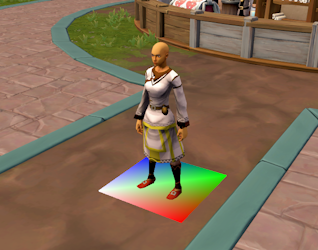
Drawing the shape data from above example, after translating to a suitable position, results in the image below.
Note that the lines are barely visible because they overlap with the triangles. A way to resolve this is shown next.
Event.Draw.Subscribe("myEvent", function(drawEvent)
    -- NOTE: Draw calls make use of curvy brackets
    ShapeList.Draw{
        -- Reference the four individual data arrays
        shapePositions = positions,
        shapeRGBA = rgba,
        shapeTris = tris,
        shapeLines = lines,
        -- Example position in the Grand Exchange
        translation = CoordGrid._0_49_54_29_23:ToCoordFine(true).position + Vector3.new(0, 1300, 0),
        ignoreDepth = false
    }
end)
ShapeData
The arrays of data shown above can be draw directly, or they can be held within a ShapeData object.
Using ShapeData improves drawing performance, as the data for these objects is stored directly in the client instead of in the Lua script.
Example ShapeData Objects
-- Re-uses the same data in the previous example

-- Just the outline of 4 lines, using default white colours
local lineOnly = ShapeData.new()
lineOnly.positions = { Vector3.new(-250, 0, -250), Vector3.new(250, 0, -250), Vector3.new(250, 0, 250), Vector3.new(-250, 0, 250) }
lineOnly.lines = { 0, 1, 1, 2, 2, 3, 3, 0 }

-- Same again, but with each position having a colour
local lineOnlyRBGA = ShapeData.new()
lineOnlyRGBA.positions = { Vector3.new(-250, 0, -250), Vector3.new(250, 0, -250), Vector3.new(250, 0, 250), Vector3.new(-250, 0, 250) }
lineOnlyRGBA.rgba = { 0xFFFFFFFF, 0xFF0000FF, 0x00FF00FF, 0x0000FFFF }
lineOnlyRGBA.lines = { 0, 1, 1, 2, 2, 3, 3, 0 }

-- Triangles instead of lines
local triOnlyRBGA = ShapeData.new()
triOnlyRGBA.positions = { Vector3.new(-250, 0, -250), Vector3.new(250, 0, -250), Vector3.new(250, 0, 250), Vector3.new(-250, 0, 250) }
triOnlyRGBA.rgba = { 0xFFFFFFFF, 0xFF0000FF, 0x00FF00FF, 0x0000FFFF }
triOnlyRGBA.tris = { 0, 1, 2, 0, 2, 3 }

-- Both triangles and lines
-- In this case the lines will barely be noticeable because
-- the colours are solid and the lines and triangles overlap
local triAndLineRBGA = ShapeData.new()
triAndLineRGBA.positions = { Vector3.new(-250, 0, -250), Vector3.new(250, 0, -250), Vector3.new(250, 0, 250), Vector3.new(-250, 0, 250) }
triAndLineRGBA.rgba = { 0xFFFFFFFF, 0xFF0000FF, 0x00FF00FF, 0x0000FFFF }
triAndLineRGBA.lines = { 0, 1, 1, 2, 2, 3, 3, 0 }
triAndLineRGBA.tris = { 0, 1, 2, 0, 2, 3 }

-- Solid line, semi-transparent tris
-- To achieve this requires duplicating positions and providing a second set of colours
local nicerTriAndLineRGBA = ShapeData.new()
nicerTriAndLineRGBA.positions = {
    -- Line positions
    Vector3.new(-250, 0, -250), Vector3.new(250, 0, -250), Vector3.new(250, 0, 250), Vector3.new(-250, 0, 250),
    -- Tri positions
    Vector3.new(-250, 0, -250), Vector3.new(250, 0, -250), Vector3.new(250, 0, 250), Vector3.new(-250, 0, 250)
}
nicerTriAndLineRGBA.rgba = {
    -- Line RGBA (solid)
    0xFFFFFFFF, 0xFF0000FF, 0x00FF00FF, 0x0000FFFF,
    -- Triangle RGBA (25% alpha)
    0xFFFFFF40, 0xFF000040, 0x00FF0040, 0x0000FF40
}
nicerTriAndLineRGBA.lines = { 0, 1, 1, 2, 2, 3, 3, 0 }
-- Triangles use the 2nd set of position indices (offset +4)
nicerTriAndLineRGBA.tris = { 4, 5, 6, 4, 6, 7 }
Info
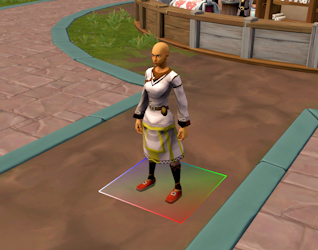
Drawing the final ShapeData from above example results in lines which are much more visible, due to the transparent triangles.
Registering Shapes
The ShapeData table provides a way to store 3D shapes for re-use in drawing.
Registering Shapes
-- Re-use the same data from the previous example

local nicerTriAndLineRGBA = ShapeData.new()
nicerTriAndLineRGBA.positions = {
    Vector3.new(-250, 0, -250), Vector3.new(250, 0, -250), Vector3.new(250, 0, 250), Vector3.new(-250, 0, 250),
    Vector3.new(-250, 0, -250), Vector3.new(250, 0, -250), Vector3.new(250, 0, 250), Vector3.new(-250, 0, 250)
}
nicerTriAndLineRGBA.rgba = {
    0xFFFFFFFF, 0xFF0000FF, 0x00FF00FF, 0x0000FFFF,
    0xFFFFFF40, 0xFF000040, 0x00FF0040, 0x0000FF40
}
nicerTriAndLineRGBA.lines = { 0, 1, 1, 2, 2, 3, 3, 0 }
nicerTriAndLineRGBA.tris = { 4, 5, 6, 4, 6, 7 }

-- Register the shape with a unique name
ShapeData.Register("my_test_shape", nicerTriAndLineRGBA)

-- Draw the shape
Event.Draw.Subscribe("myEvent", function(drawEvent)
    ShapeList.Draw{
        -- Reference the registered ShapeData by name
        shapeDataName = "my_test_shape",
        translation = CoordGrid._0_49_54_29_23:ToCoordFine(true).position + Vector3.new(0, 1300, 0),
        ignoreDepth = false
    }

    -- Draw again elsewhere
    ShapeList.Draw{
        shapeDataName = "my_test_shape",
        translation = CoordGrid._0_49_54_31_24:ToCoordFine(true).position + Vector3.new(0, 1300, 0),
        ignoreDepth = false
    }
end)
Important
- A registered shape belongs to the plugin which registered it.
- Only the owning plugin can draw the registered shape directly.
- The shape will be unregistered when the plugin unloads.
How can plugins share shapes?
A plugin can register shapes, then export functions which draw those shapes. In this way, a plugin can add dependencies on other library plugins which can handle storing and drawing shapes.
-------------------------------------------------------
-- PluginA

-- Register a shape only PluginA can access
local shapeDataA = ShapeData.new()
...
ShapeData.Register("shapeA", shapeDataA)

-- Create a function to draw the shape at the given input CoordGrid
function drawExportShape(coordGrid)
    if ShapeData.IsRegistered("shapeA") then
        ShapeList.Draw{
            shapeDataName = "shapeA",
            -- Position the shape in the centre of the input coordinate
            translation = coordGrid:ToCoordFine(true).position + Vector3.new(0, 200, 0)
        }
    end
end

-- Export the function
return { DrawExportShape = drawExportShape }

-------------------------------------------------------
-- PluginB

-- Sets an optional dependency in plugin.json with
"optionalDependencies" : { "PluginA": "PluginA" },

-- Call the exported function
if PluginA then
    -- Draw at the target coordinate
    PluginA.DrawExportShape(CoordGrid._0_50_50_28_32)
end
Data Validation
Both ShapeData and separate data arrays are validated when registered or drawn. Any data that is invalid will result in an error and fail to draw.
Important
Examples of invalid data include:
- No positions provided
- No triangle indices and no line indices
- Any triangle or line index that is outside of the valid range:
0 -> (position count - 1)
- Invalid triangle index count
- Count must be divisible by 3, i.e.
count % 3 == 0
- Count must be divisible by 3, i.e.
- Invalid line index count
- Count must be divisible by 2, i.e.
count % 2 == 0
- Count must be divisible by 2, i.e.
- Mismatch of position and RGBA colour counts
- If 0 RGBA colours are provided then an internal array of default colours (
0xFFFFFFFF) is created to match the number of positions
- If 0 RGBA colours are provided then an internal array of default colours (
Drawing Shapes
There are three distinct approaches to drawing shapes, each with their own unique benefits and behaviours:
Direct Draw
The first approach for drawing shapes is the simplest but also the most costly to performance.
Two methods are provided for drawing shapes with minimal management:
These calls must be made on every draw frame in order to be visible - if the call is not made, the shape will not be drawn.
Additionally, these calls can only be made within specific Draw-related Events:
Warning
Attempting to use ShapeList.Draw() or ShapeList.DrawLine() in an other event, or outside of events entirely, will result in an error.
These calls are costlier due the script execution overhead required to keep them visible. However, they do allow for a great deal of flexibility when dealing with shapes that are dynamic or intended to be short-lived.
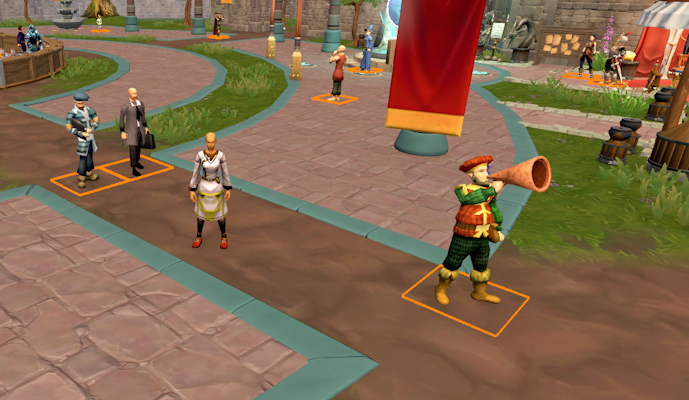
Drawing a tile shape on every NPCEntity
-- A basic tile shape
local tileShape = ShapeData.new()
tileShape.positions = { Vector3.new(-250, 0, -250), Vector3.new(250, 0, -250), Vector3.new(250, 0, 250), Vector3.new(-250, 0, 250) }
tileShape.lines = { 0, 1, 1, 2, 2, 3, 3, 0 }

function OnEntityDraw(entityEvent)
    if entityEvent.entityType == EntityType.NPC then

        ShapeList.Draw{
            shapeDatatileShape,
            -- Draw at the entity feet position, with a small vertical offset to avoid clipping
            translation = entityEvent.npcEntity.position + Vector3.new(0, 30, 0),
            ignoreDepth = false,
            -- Draw thicker lines
            lineWidth = 4,
            -- Orange
            colour = 0xFF8800FF
        }

    end
    -- Remember to return true to make sure the entity keeps drawing
    return true
end

Event.EntityDraw.Subscribe("myEvent", OnEntityDraw)
Shape Instance
The next approach involves creating a ShapeInstance. These reduce the scripting performance cost of using draw events by creating a persistent object that automatically draws itself.
An instance can be created, adjusted and deleted at any time, and are deleted automatically when the plugin is disabled.
Info
Only the plugin which created the ShapeInstance is able to access or destroy it.
They also have a general visibility toggle for additional control.
Creating a bouncing Shape Instance
-- A basic tile shape
local tileShape = ShapeData.new()
tileShape.positions = { Vector3.new(-250, 0, -250), Vector3.new(250, 0, -250), Vector3.new(250, 0, 250), Vector3.new(-250, 0, 250) }
tileShape.lines = { 0, 1, 1, 2, 2, 3, 3, 0 }

-- Choose a tile and convert to a position
local coord = CoordGrid:new(0, 50, 50, 31, 31)
local instancePos = coord:ToCoordFine(true).position

-- Get the ground height at that position
local groundHeight = World.GetGroundHeight(coord.level, instancePos.x, instancePos.z)
-- Create start and end heights for the bounce
local startHeight = groundHeight + 30.0
local endHeight = groundHeight + 160.0

-- Set the instance height
instancePos.y = startHeight

-- Create the named shape instance
local instance = ShapeList.CreateInstance("myInstance")
instance:SetShapeData(tileShape)
instance.translation = instancePos
instance.colour = 0xFF8800FF
instance.ignoreDepth = false

-- Use the Logic event to bounce the shape up and down
function OnLogicEvent(logicEvent)

    -- Retrieve the instance
    local instance = ShapeList.GetInstance("myInstance")
    if instance ~= nil then

        -- Bounce over 150 ticks
        local tick = logicEvent.logicTick % 150
        if tick > 75 then tick = 150 - tick end
        local bounceRatio = tick / 75
        local bounceHeight = startHeight + ((endHeight - startHeight) * bounceRatio)

        -- Update the instance height
        local pos = instance.translation;
        pos.y = bounceHeight
        instance.translation = pos

    end
end

Event.Logic.Subscribe("myEvent", OnLogicEvent)
Important
A ShapeInstance will continue to draw even if it is very far away.
It is the responsibility of the developer to manage the visibility of a ShapeInstance and when it should be deleted.
Shape Entity
The third approach is to use a ShapeEntity object, which builds upon the automatic drawing of a ShapeInstance by creating or destroying the visual element of the shape as the Player Character gets closer or further away.
A ShapeEntity is intended for long-term management of shapes that are fixed in one position.If you are creating shapes that will persist in a specific place, then you can create a ShapeEntity at that position and the client will handle the rest.
Info
Only the plugin which created the ShapeEntity is able to access or destroy it.
Warning
While a ShapeEntity can have its position changed at any time, it will result in a rebuild of its visual element. This rebuild is not immediate, leading to some frames where the shape is not shown. This makes the ShapeEntity approach unsuitable for cases where shapes need to move around.
Info
When an area of the game world is loaded any ShapeEntity placed within that area will be displayed. Similarly, when an area is unloaded any ShapeEntity within it will be hidden.
Since the client can load areas from quite far away, it means you could see shapes drawing far in the distance.
To assist with this, a ShapeEntity can use various SetDrawDistance() methods to manage when it should be drawn, and each entity has default values assigned.
As a result of their fixed nature, ShapeEntity lacks the transform properties found in other approaches. However, they offer unique behaviour not found in other approaches:
| Behaviour | Description |
|---|---|
| Automatic height | Shapes are positioned at the ground height by default.The heightOffset property can then be used to offset the shape further. |
| Slope alignment | Shapes can align to the ground in several ways.See ShapeEntityAlignType. |
| Rotation speed | Shapes can be assigned a starting rotation value and an additional speed to continue rotating at. |
Creating several ShapeEntities
-- A basic tile shape with a fill
local tileShape = ShapeData.new()
tileShape.positions = {
    Vector3.new(-250, 0, -250), Vector3.new(250, 0, -250), Vector3.new(250, 0, 250), Vector3.new(-250, 0, 250),
    Vector3.new(-250, 0, -250), Vector3.new(250, 0, -250), Vector3.new(250, 0, 250), Vector3.new(-250, 0, 250)
}
tileShape.rgba = {
    0xFFFFFFFF, 0xFFFFFFFF, 0xFFFFFFFF, 0xFFFFFFFF,
    0xFFFFFF7F, 0xFFFFFF7F, 0xFFFFFF7F, 0xFFFFFF7F,
}
tileShape.tris = { 4, 5, 6, 4, 6, 7 }
tileShape.lines = { 0, 1, 1, 2, 2, 3, 3, 0 }

-- Create a series of example entities

-- Basic (Red)
local entity = ShapeList.CreateEntity("myEntity1")
entity:SetShapeData(tileShape)
entity.coordGrid = CoordGrid:new(0, 50, 53, 55, 35)
entity.colour = 0xFF0000FF
entity.heightOffset = 100
entity.alignType = ShapeEntityAlignType.NONE

-- Align to ground slope (Green)
local entity = ShapeList.CreateEntity("myEntity2")
entity:SetShapeData(tileShape)
entity.coordGrid = CoordGrid:new(0, 50, 53, 54, 33)
entity.colour = 0x00FF00FF
entity.heightOffset = 200
entity.alignType = ShapeEntityAlignType.OBJECT

-- Rotation speed (Blue)
local entity = ShapeList.CreateEntity("myEntity3")
entity:SetShapeData(tileShape)
entity.coordGrid = CoordGrid:new(0, 50, 53, 53, 35)
entity.colour = 0x0000FFFF
entity.heightOffset = 100
entity.rotationSpeed = 80