Retrieving information
When you are making your plugin, you will likely want to access information about RuneScape directly from the game itself, rather than having to look it up on some external source that isn't guaranteed to be up to date. The API gives you access to a lot of this information directly.
Previous tutorial
This tutorial assumes you have already completed the previous tutorial, and have a main.lua file with UI elements in which to copy snippets of code.
Objectives
- Retrieving static information about the game as a whole
- Retrieving dynamic information about the part of the game near you
Types of information
Information available to plugins can be broadly categorised into two types: static and dynamic.
Configs provide static information about parts of the game that do not change. For example, Hans is an NPC with a size of 1x1, so you can lookup the size value of 1 in the config information stored for Hans.
Entities provide dynamic information about the parts of the world near the player, and what it is doing. For example if you are standing in Lumbridge then Hans is quite close by, and the game client is receiving information from the server about where Hans is on your world. Therefore you can look up information like current position in the entity information attched to Hans. This information is not available if you are too far away from Lumbridge that the client is not receiving entity information for Hans.
Static information
There are lots of different types of configs for the different types of thing that the config can refer to, such as NPC, quests, Locs (colloquially called scenery), or items. A full list of config types can be found in the rest of this documentation, but for now we will use one example of the Varrock stray dog, who is an NPC. Other types of config exist, and you can read about them in the documentation.
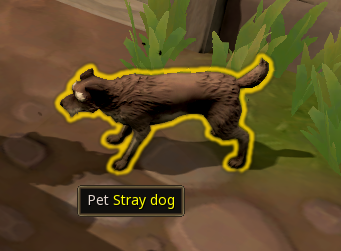
Accessing a config
Since all configs for all NPCs are available no matter where they are in the world, there are a lot of configs to look through, and it is important to find the correct one. This is where the console command pan is used.
Example
This example command must be entered into the console, not into the plugin script.
Entering the above command will copy the list of all NPCs to the clipboard, so that you can open up any text editor such as notepad and paste in the list of all NPC id and configName values. At the time of writing this guide there were over 32,000 NPCs so it can take a bit of searching to find the one that you want. For the Varrock stray dog, there will be a line in the list that shows as:
id |
configName |
|---|---|
5917 |
DOG_STRAY |
So this means that the name of the config that we will use is DOG_STRAY. There is also a config for DOG_STRAY2 that is an almost identical stray dog, however this tutorial will only consider the first one.
Extracting information from the config
Once you know which NPC you are accessing, you can retrieve the config for that NPC by adding the following to your main.lua.
Example
This creates a new variable and stores all the config information in that variable. But what information is in the config? It depends on the type of the config (in this case: NPC), so the way to check is to visit the page of this documentation and read the list of properties to see.
The last line of this code section looks in the config to find the name, which is already a string, and concatenates it with the gridSize. Since gridSize is a number (according to the documentation), it needs to be converted using tostring() before it can be concatenated with the name string. We also put a bit of plain text between them or else the output would be "Stray dog1".
Note how changing the content of the myText component like this does not affect the button on the UI, or its function, since the string still exists and can have another ! added to the end of it.
Dynamic information
Configs contain information about the way that the game is set up (or "configured"), but to know about how individual NPCs, players, or items change when you e.g. hit them with a big stick, then we turn to entities.
An entity is created from a config but it can then change after creation, such as moving around the world.
Tip
In the plugin development environment, you can quickly move around the world by using CTRL+SHIFT+left click to instantly teleport to any location in the world, on the minimap, or even on the main map. Use this to quickly and simply get to any entity that you want to find information about.
NPCList
To find out what entities are currently in your game world, the NPCList functions are used. They will generate a list of NPCs that are close enough to you that the game client receives their information from the server. There are different functions for how you want to choose which NPCs you are looking for, such as matching all NPCs, ones with a specified name, or ones with a specified config. If we used the config we defined above for config.NPC.DOG_STRAY then we would actually miss out ony any stray dog with the config config.NPC.DOG_STRAY2. To ensure that we find all the stray dogs, so we will use the NPCList.ByName() function.
This function will always return a list (called a "table" in Lua terminology) of NPCs, but there might be any number of entries in the table, even zero. To do anything with this table of NPCs, you will need to iterate over it.
Example
The above code will make a list of NPCs that have the config for the stray dog, then go through that list one NPC at a time, and for each found dog it will log a message saying that it has been found. Depending on where you are standing in the world it might find 0 stray dogs, or 1, or multiple, and it will log all of them. The log() function is like the print() function that was mentioned in tutorial 1 for putting information into the console, except it adds a bit more information about which line of your code the information came from.
To test this code, it is recommended to travel to the Varrock lodestone, where stray dogs can be found. Since this code is not attached to the button, it will only run once when the plugin is enabled. You can test it by typing prl tutorial-plugin in the console.
Location
Once an NPC entity has been found that matches the criteria, then you are able to get information from the NPCEntity of that NPC. In that documentation it says what information is available, and you can see that coordGrid and facing are listed.
Example
-- Code section 7 version 2
-- Find all nearby NPCs that match the name and display their location
local localDogs = NPCList.ByName(strayDogName)
for _,npc in pairs(localDogs) do
    myText.content = formatStr('{} is at position {} and is facing {}',npc.config.name,tostring(npc.coordGrid),npc.facing)
end
The above code is a modification to the previous code section 7. It finds all the stray dogs, but instead of simply logging that it has found a dog, it extracts location information about that dog. For each dog that it finds, it replaces the text in the UI with a sentence constructed by the formatStr() function. This is an easier way of creating strings that have other data in them than the concatenation method used up until now. The first string in the function is the pattern, and it contains {} everywhere that another string should be inserted. Then the remaining parameters given to the function are the values that should be inserted: the name, the coordGrid (which must be converted using tostring()), and the facing direction.
The position information of the stray dog is given in coordGrid format, which is five numbers representing the height level, map-square horizontal and vertical coordinates (also called a "chunk"), and tile horizontal and vertical coordinates.
Test this code, and consider the following:
- What happens when I press the button?
- What happens if there are no dogs found?
- What happens if there are multiple dogs found?
- What happens if the dog moves?
When you press the button, the text on the UI still gets ! appended to it, since the text is still just a string.
If there are no dogs, then the text content is never changed from its initial string of "Hello world!" set at the beginning of main.lua.
If there are multiple dogs, then when the iterator updates the text in the UI for the second dog, it will be overwriting what it put in there for the first dog. The same is true for any number of additional dogs.
If the dog moves, nothing happens. The text in the UI gets set once by the script, and so it doesn't update when the position or facing direction of the dog changes.
Tip
Remeber that you can use CTRL+SHIFT+left click to teleport to dogs very quickly (or away from dogs, if you so choose).
Updating location
To make the UI update when the dog has moved, we can attach that behaviour to the button on the UI. To do this we need to remove the existing code section 5 that makes the text get more excited, as well as rewrite code section 7 to use the button.
Example
-- Code section 5 version 2
-- Creating the button callback function relies on information defined later in the script
-- Code section 7 version 3
-- When the button is pressed: Find all nearby NPCs that match the config and display their location
local function buttonPress()
    localDogs = NPCList.ByName('Stray dog')
    for _,npc in pairs(localDogs) do
        myText.content = formatStr('{} is at position {} and is facing {}',npc.config.name,tostring(npc.coordGrid),npc.facing)
    end
end
myButton:Subscribe(ui.Hook.ONBUTTONPRESSED, buttonPress)
Now what happens is that every time you press the button, the plugin re-checks for any stray dog NPCs and updates the UI information to reflect where they currently are. Note that this new buttonPress function needs to know the config for the dog that is defined in code section 6. That is why the function must be defined in code section 7, and cannot be placed in code section 5 where the previous button callback function was.
Player
While it is possible to use PlayerList in much the same way as NPCList, the information accessible about other players is more restricted than the information available about your own player character. This extra information is stored in the Player variable, and contains information about XP, levels. For example:
Example
This will log to console the current attack level of the player, including any boosted or drained levels.
VarPlayer and VarClient
More information about the player is available through VarPlayers and VarClients, which are used to store most bits of information about a player's progress in the game. VarClients tend to contain information that the server doesn't necessarily need to permanently store, such as combat stats and UI layout, whereas VarPlayers tend to store more permanent server-side information such as their completion of quests, unlocking ability codices, or what furniture they have placed in their player-owned-house.
The console commands pan VarPlayer or pan VarClient can be used to get an index of what each Var is called and the format of information it contains. The information can be retrieved from var by syntax like this:
Example
-- Code section 8 version 2
-- Display some information about the player and client
print(formatStr('Attack level: {}',Player.GetLevelGameplay(SkillType.ATTACK)))
print(formatStr('BGH cooldown: {}',var.VarClient.COMBATV2_DINO_GAME_ENCOUNTER_COOLDOWN_CLIENT_1.value))
print(formatStr('GBarge log: {}',var.VarPlayer.ITEMLOG_ITEM_DUNGEON_MELEE_CODEX_BARGE.value))
This section of code retrieves and prints three bits of information about the player, each of which is stored in a different format:
- Attack level, retrieved by
Player.GetLevelGameplay - Big Game Hunter cooldown state, stored in
var.VarClient - Greater barge ability codex collection log state, stored in
var.VarPlayer
For each of these, the code will print them in a formatted string that contains information about what the variable is, and what value it has.