Adding a user interface
So far you have created a plugin for RuneScape, but your plugin only displays text on the game console. To make your plugin feel more connected to the game, it is useful to create an interface window where users can interact with the plugin.
Previous tutorial
This tutorial assumes you have already completed the previous tutorial, and have a main.lua file in which to copy snippets of code.
Warning
If you changed your plugin code to throw an error in the previous tutorial, fix the error before continuing using the example below.
Objectives
- Understanding component hiererchy
- Create an interface window
- Displaying text and shapes
- Applying a stylesheet
- Creating a button
Components
The user interface for RuneScape is made up of components, which are arranged in a hierarchical structure. For example:
- An element like the Brightness slider (shown below)
- ...is a part of the Brightness settings box
- ...which is a part of the grid of settings boxes
- ...which is a part of the Advanced settings section
- ...which is a part of the Graphics tab
- ...which is a part of the Settings window
- ...which is a part of the game window itself
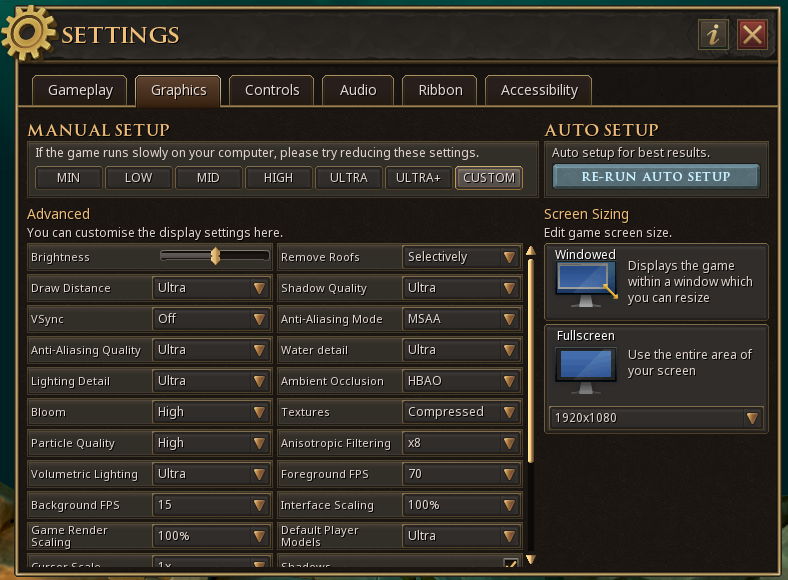
This behaviour is referred to as parent/child, so the slider is a child of the box, and the box is the parent of the slider. As a part of the plugin API it is possible to make your own user interface elements, but it is important to know that these new components must be made as the children of an existing component, usually this is done by selecting the game window itself as the parent to components created by plugins.
Creating a simple window
In part 1 of this tutorial a plugin was created that displayed some text into the console. While this is simple, it is not very convenient for plugins to use the console for all the information that they want to display. It looks nicer and is more useful if the plugin creates its own interface to be able to interact with what the plugin is created for.
Finding a parent
Before we can create any UI component, we need to know what parent to attach it to. Add this line to your main.lua:
Example
This code snippet has been labelled as Code section 1. This labelling is to assist in following this tutorial, as code will be added to main.lua, or possibly removed or changed. Labelling the sections that you copy from the tutorial ensures that each section is placed in the correct location. -- Code section 1 is a comment, the -- means that anything that follows it is not actual code, just information about what the nearby code does.
What section 1 does is it finds the component called TOPLEVEL_V2__PLUGIN_BUILD_LAYER_TOP, which is a component created specifically for plugins. It is a layer on the game window that appears above most game and interface components. Now your plugin can create its own components and they will be positioned relative to the game window, and if you move your game window then the plugin components will move with it.
Creating a window
There are lots of different kinds of components that can be created, but for a simple starter we will create a groupbox. A groupbox is a useful starter UI component since it includes both a visual element, and also allows you to place other components inside it. For this, we want to know where it should be and how big it needs to be.
Example
Each line of this code does something important:
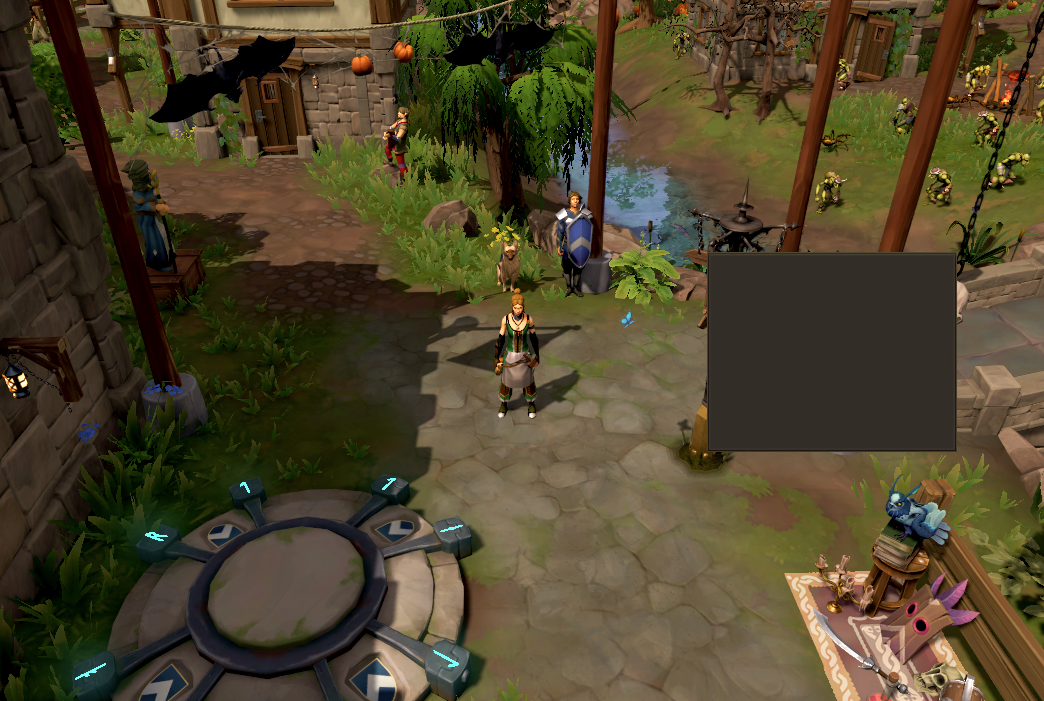
local myGroupBox = ui.GroupBox.new(game_window)creates a new component, names itmyGroupBox, makes it of theGroupBoxtype, and makes it a child of thegame_windowcomponent that was defined earlier.myGroupBox:SetHeaderLayout(0,0,0,0,0)removes the title header from the group box, as we will not be using it.myGroupBox:SetSize(250,200)sets the size of the rectangle to be 250 pixels wide and 200 pixels tall.myGroupBox:SetPos(0,0,0.6,0.4)sets the top left position of component relative to the size of the parent, by using the 3rd and 4th input parameters. It is 0.6 of the total width of the parent horizontally, and 0.4 of the total height of the parent vertically.myGroupBox.stylesheetID = id.StyleSheet.DEFAULTsets the display style for this component to be a standard format, that of a groupbox content panel. Without this line of code, the panel has no information for how it should be displayed, so it will be invisible.
The result is a standard-looking interface component that is just to the right of the middle of the screen.
Adding subcomponents
Now that we have a user interface window, it's time to put some other components inside it. This is done by making the new components as children of the existing component. We will make 2 components within the group box.
Text
Example
This code will create a new component of type Text as a child of the group box. As with the box itself, both the position and size of the box are set, so this text box will be the full width of its parent, but only 0.5 of the height.
Text components also need to set a font to use for the text, otherwise it will be invisible, and this text component also sets the alignment from the text itself to the box that contains the text as centered.
Colour
Example
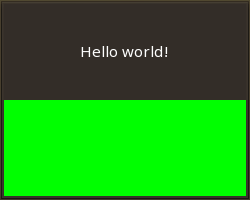
This code will add a rectangle to the group box. Like the text, it uses relative size and position so that the rectangle will be placed on the bottom half of the group box. It further specifies the colour of the rectangle as green by using a Vector4 to set the red-green-blue-opacity values, and it also fills in the rectangle, since it would otherwise only draw the outline.
Current state
With the 2 child components added to the group box, the plugin interface now looks something like this.
Stylesheets and component types
It was shown for the group box that style sheets are powerful tools for making components fit the look and feel of a RuneScape user interface, since they are preset display values that are already used by existing elements of the interface. However, style sheets can only be applied to components of the correct type.
Furthermore, the type of a component determines what behaviours it can do, including whether it can have child components. A GroupBox is a layout component, so it has fewer controls for how it is displayed, but more control over having children and where they are located. In contrast, a Rectangle is a decorative component, so it has more control over how it is displayed but it cannot have children.
Creating a button
The last part of this user interface section will be to add an interactive component to the plugin, a button, and to add function to that button so that pressing it will do something.
The button component
Example
This code should replace the previous code section 4
This section of code will replace the rectangle with a button in the group box. The previous code section 4 should be removed, and replaced with this code section 4. The button uses a standard style sheet for a button, which controls the buttons colour, border, text size, text position, and even makes the button briefly flash a different colour as it is clicked on.
Making it do something
To make the button have a function requires the following:
Example
This snippet of code can be broken down into sections to analyse what it does:
local function buttonPress()defines a new function that will contain all of the code that will be run every time the button is pressed.myText.content = myText.content.."!"takes the text currently displayed above the button, and appends an extra!to the end of itmyButton:Subscribe()tells the button that it should be waiting for an event to happen. It doesn't pause the execution of the script, but rather it tells the button to always be waiting. Events are covered in more detail on page 4 of the tutorial.ui.Hook.ONBUTTONPRESSEDis what the button is waiting for, it is the event that corresponds to the button being pushed.buttonPressinside the subscribe tells the button that this is what to do when the event happens.
Put it all together and you should have a button that makes your "Hello world!" interface get more and more excited every time you press the button.