ui.InputField
Overview
ui.Component -> ui.InputField
Input fields handle text inputs and trigger ONCONTENTCHANGE actions in response.
They support multiple input, filter, and text visibility modes, allowing them to be used for any type of text inputs, from chat messages, to pins and passwords.
Example
-- Callback for handling content updates
local contentChangeFn = function (c, cause, newContent)
        print("Content changed due to", cause, "new content:", newContent, " | content from component:", c.content)
    end

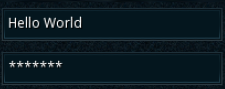
-- Creating an always-visible input
local inputVisible = ui.InputField.new(parent)
inputVisible.stylesheetID = input_default
inputVisible.content = "Hello World"
inputVisible:SetSize(200, 30)
inputVisible:SetPos(5, 5)
inputVisible:Subscribe(ui.Hook.ONCONTENTCHANGED, contentChangeFn)

-- Creating a password input
local inputHidden = ui.InputField.new(parent)
inputHidden.stylesheetID = input_default
inputHidden.content = "hunter2"
inputHidden:Setup(ui.TextContentVisibilityMode.HIDDEN, ui.InputFieldFilterMode.NONE, 0)
inputHidden:SetSize(200, 30)
inputHidden:SetPos(5, 5)
inputHidden:Subscribe(ui.Hook.ONCONTENTCHANGED, contentChangeFn)
Enumerations
ui.InputFieldKeyHandlingMode
Identifies what inputs will be handled by an InputField component.
| Value | Description |
|---|---|
| DEFAULT | Handles all inputs. |
| CHAT | Ignores keyboard arrow key inputs. |
ui.InputFieldFilterMode
Contains the available filter modes for filtering user inputs written to an InputField component.
| Value | Description |
|---|---|
| NONE | No filtering, all inputs allowed. |
| ALPHANUMERIC | No symbol inputs allowed. |
| NUMERIC | Only numbers allowed. |
| QUANTITY | Only allows numbers and english quantity designators (eg. 1K representing 1000, 1M representing 1000000). |
| NUMBERS_AS_TEXT | Only numbers allowed, with the resulting number always being represented as a string. |
ui.InputFieldActionResult
Contains the potential result type for the most recent input action on an InputField component.
Info
Consider carefully what's the appropriate response to each of these action results based on the context around each component.
While submit indicates active intent by the user to finalise input and trigger a potential action, the other options do not represent that active intent by default, depending entirely instead on the context.
For example:
- Having
submiton a login form's password field trigger the login process may make sense, but that's not the case forsubmitOnEscape - Using
submitOnFocusLossas part of a search form's input field can reduce friction for the user, and make searches appear to be faster submitOnEscapeis more situational, but can be treated as a "clear this input's contents" command from the user in cases where input fields are repeatedly used in succession with completely distinct inputs, such as when performing searches or using the chat
| Value | Description |
|---|---|
| NONE | No recent input actions. |
| ERROR | An error occurred during the latest input action. |
| CONTENT_CHANGE | The InputField's contents have changed due to the latest input action. |
| SUBMIT | The latest input action was a submit request, triggered by the user pressing the Enter key. |
| SUBMIT_ON_ESCAPE | The latest input action may be treated as a submit request, triggered by the user pressing the Esc key. |
| SUBMIT_ON_FOCUS_LOSS | The latest input action may be treated as a submit request, triggered by the InputField losing focus due to the user clicking elsewhere. |
Info
Keep in mind submitOnEscape and submitOnFocusLoss only represent a potential submit request.
For example, you may want to treat focus loss as a submit request for an InputField used as a search filter, but it wouldn't make sense to do so for the chat box.
ui.TextContentVisibilityMode
Contains the visibility modes available for text in InputFields.
| Value | Description |
|---|---|
| VISIBLE | Text is always visible. |
| SHOW_LAST | All text other than the last character is hidden, replaced by * characters. |
| HIDDEN | All text is replaced by * characters. |
Methods
Constructor
function ui.InputField.new(parent : ui.ComponentCollection, categoryID : Int?, dynamicID : Int?) -> InputField
Creates a new input field on the specified parent.
Warning
Creating a component can fail if there's already a component on that parent with the same category ID and dynamic ID, or if those are omitted and the application is unable to generate a valid ID for the component.
| Parameter | Type | Description |
|---|---|---|
| parent | ui.ComponentCollection | Parent component to create this input field in. |
| categoryID | Int? | Category ID used to identify this component. Defaults to the parent's category ID if not specified. |
| dynamicID | Int? | Dynamic ID used to identify this component. Defaults to auto-incrementing from the parent's dynamic ID if not specified. |
| Returns | Description |
|---|---|
| InputField | The newly created input field. The caller must set its layout and visual information afterwards. |
Setup
function ui.InputField:Setup(visibility : ui.TextContentVisibilityMode, filter : ui.InputFieldFilterMode, maxLength : Int)
Sets text handling and content drawing properties for this input field.
Warning
Setting any visibility mode other than ui.TextContentVisibilityMode.VISIBLE will automatically tag the component as restricted.
Info
Attempting to call this on a restricted input field will fail.
| Parameter | Type | Description |
|---|---|---|
| visibility | ui.TextContentVisibilityMode | How the contents should be displayed to the user. |
| filter | ui.InputFieldFilterMode | How inputs should be filtered, if at all. |
| maxLength | Int | The maximum number of characters allowed. |
Properties
| Name | Type | Description |
|---|---|---|
| content | String | Gets or sets the current contents of the input field. If the component is restricted, attempting to retrieve the contents will yield an empty string. |
| contentQuantity | Int? | (Read-only) Attempts to convert the current contents into an integer and returns it if successful. Only usable with numeric and quantity input fields. |
| visibility | ui.TextContentVisibilityMode | Identifies how text will be drawn for this input field. |
| filterMode | ui.InputFieldFilterMode | Identifies how inputs will be filtered by this input field. |
| maxLength | Int | (Read-only) The maximum number of characters that are allowed in this input field. |
| inputMode | ui.InputFieldKeyHandlingMode | Identifies how inputs will be handled by this input field. |
| emptyText | String | Text to be displayed while this input field is empty. |
| caretColour | Vector4 | Colour used for the cursor. |
| caretRGBA | Uint | Hex-encoded red/green/blue/alpha colour code for the cursor. |
| errorCaretColour | Vector4 | Colour used for the cursor when an error occurs. |
| errorCaretRGBA | Uint | Hex-encoded red/green/blue/alpha colour code used for the cursor when an error occurs. |
| selectionHighlightColour | Vector4 | Colour used for the text selection overlay. |
| selectionHighlightRGBA | Uint | Hex-encoded red/green/blue/alpha colour code used for the text selection overlay. |
| emptyTextColour | Vector4 | Colour used for the text displayed while the input field is empty. |
| emptyTextRGBA | Uint | Hex-encoded red/green/blue/alpha colour code used for the text displayed while the input field is empty. |
| contentMargin | ui.Margin | (Modifiable Contents) Offsets used to determine the inner content area for this component. |
| text | ui.TextData | (Modifiable Contents) Text properties used when displaying this input field. Note using text.content will not yield the actual contents of the input field, and you must instead use the content property present on the input field itself. |
| containerSprite | ui.SpriteData | (Modifiable Contents) Sprite properties used for the background. |
| scrollbar | ui.ScrollBar | (Modifiable Contents) Scroll bar proprties used when vertical scrolling is required. |
Custom Visuals
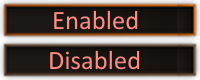
Using custom or plugin-provided sprites is supported, however the provided sprite must represent a spritesheet containing all of the potential states in a vertical layout using the following order - default, disabled.